I Spent a Day Testing Phot.ai So You Don’t Have To — Here’s Where It Nails It and Where It Faceplants
⚡ Quick Verdict
I tested Phot.ai with a Stanley cup and a clear glass. Here's where it nails product scenes and where it faceplants on transparent objects. Real data, no fluff.
*Brutally Honest Phot.ai Review (2026): Is This AI Product Photo Tool Worth Your Money?*
Once your product images are ready for different markets, getting the listing copy right in each language is the next big challenge — my roundup of the top AI translation tools covers the options that actually handle ecommerce terminology well.
Great product visuals get attention, but it’s the copy that closes the sale — AI writing tools like Writesonic can turn those images into optimized product descriptions that match the quality of your photography.
- Amazon sellers needing quick batch edits
- Jewelry & glass product photography
- Beginners wanting zero editing effort
- Complex multi-product scenes
Free credits on sign-up – No card required
Hiring a product photographer costs $200–$500 a session. Phot.ai promises you can skip that and get studio-quality shots from your laptop. I’ve heard the hype. I didn’t buy it.
So I grabbed my own products — a Stanley Quencher cup and a clear glass of sparkling water (because transparent glass is the ultimate middle finger to AI image tools) — and spent a full day stress-testing this thing.
Here’s what actually happened.
The Good — Where Phot.ai Actually Impressed Me
Test 1: Product Scene Generation — Stanley Quencher on Marble
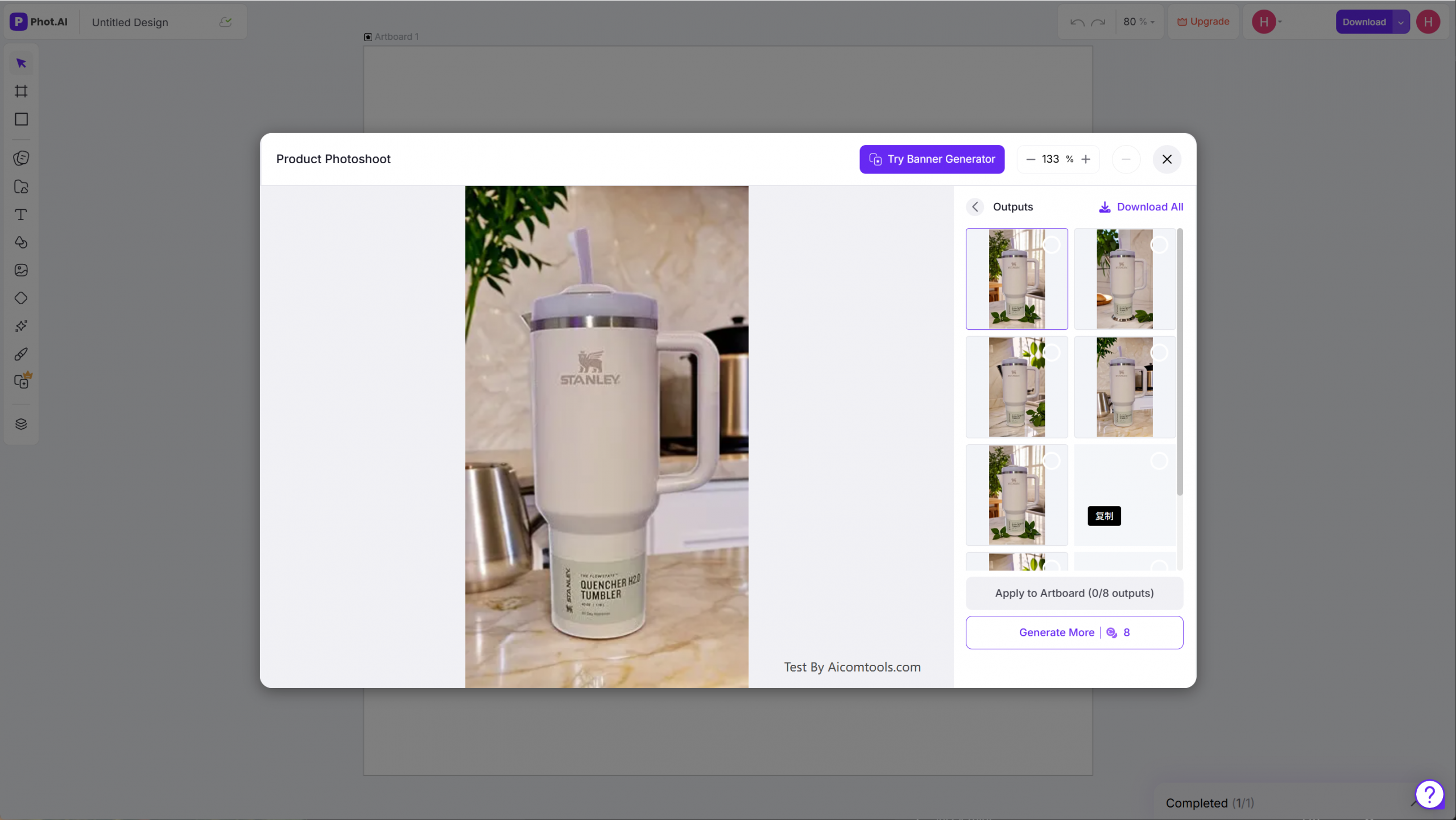
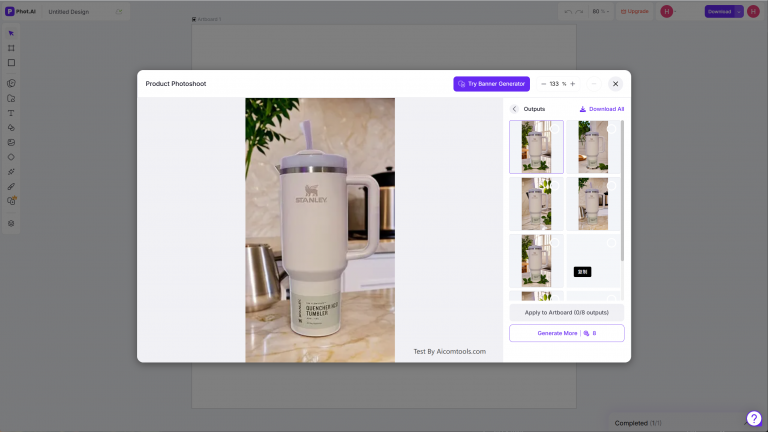
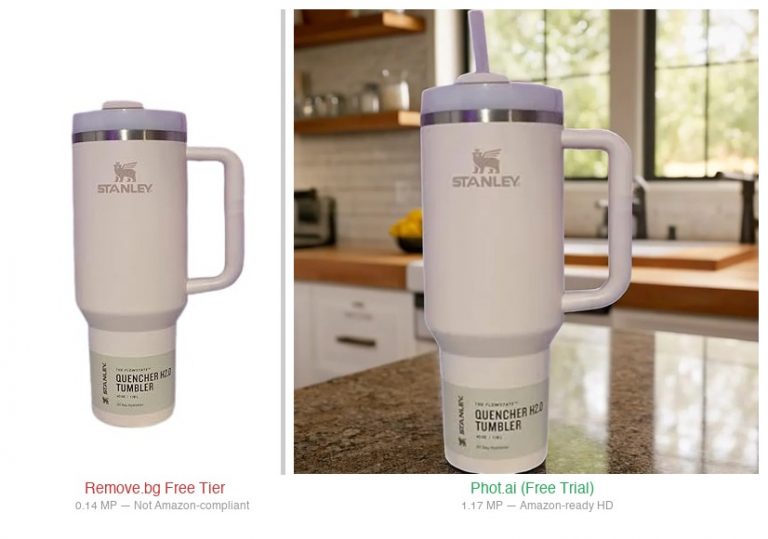
I uploaded a cream/lavender Stanley Quencher H2.0. Prompt: “marble surface, sunlight, green leaves, warm kitchen vibe.” Cost me 8 credits. Got 8 variations back.
**Result? Honestly solid.** The shadows looked natural — not that fake “floating object” look you get from most AI tools. The leaf reflections on the marble surface matched the light angle. Warm kitchen vibe actually felt warm, not like a CGI rendering.
**Rating: 4/5.** If you sell simple, opaque products (sneakers, supplements, skincare bottles), Phot.ai will save you serious money on photoshoots.
Test 2: Background Removal — Clear Glass (Hard Mode)
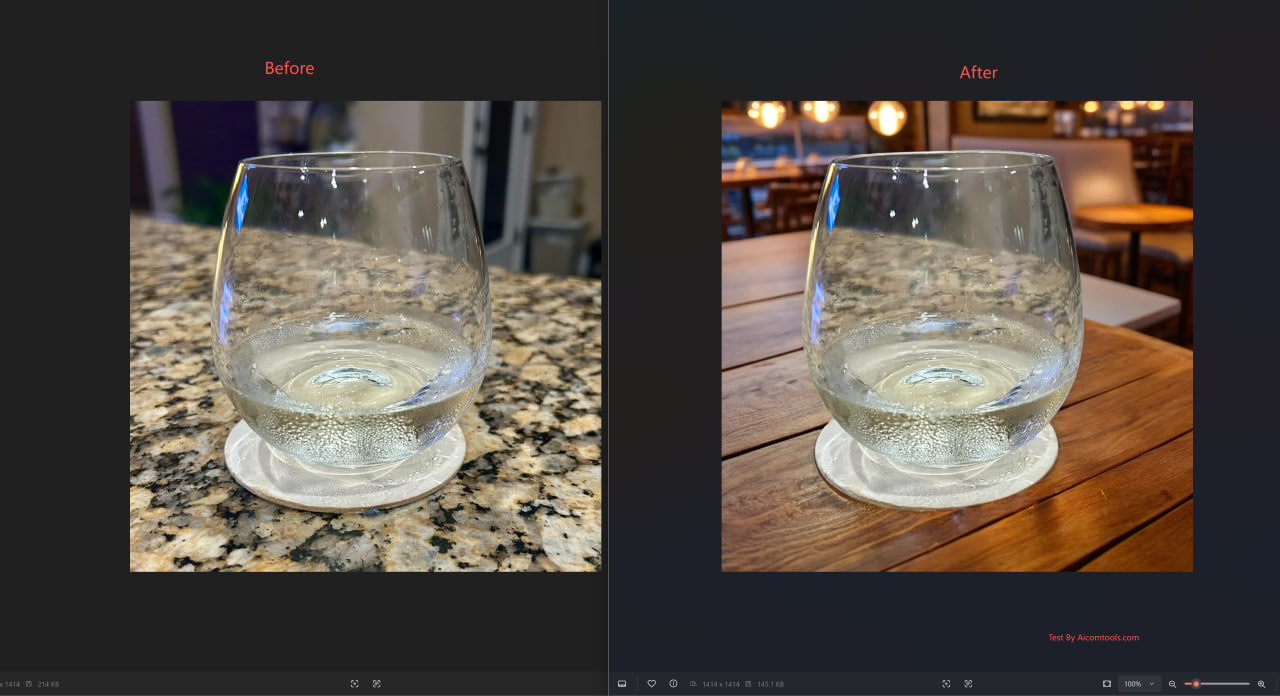
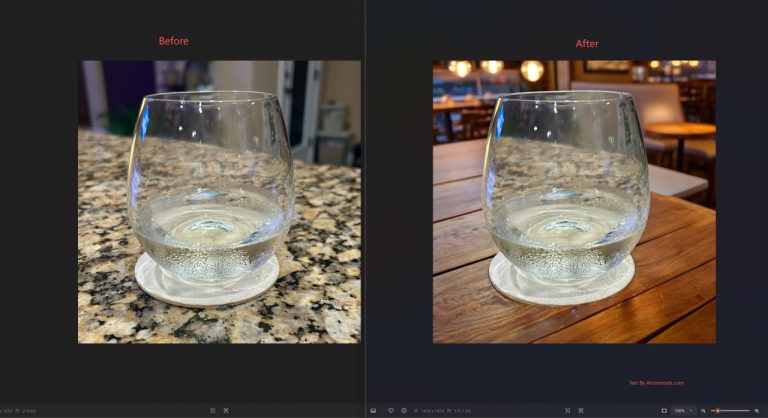
I threw a sparkling water glass at the “Elegant Restaurant” preset. Clear glass with bubbles — if you’ve ever tried to remove the background on transparent objects, you know this is where most tools throw up their hands.
**Phot.ai handled it.** Edge detection was clean. No halo artifacts around the rim. The glass blended into the “restaurant” background naturally, like it was actually sitting on that table.
**Rating: 4/5.** For a one-click background swap, this is as good as I’ve seen. If your catalog is mostly solid objects with standard lighting, you’re golden.
The Ugly Truth — Where Phot.ai Completely Dropped the Ball
Test 3: Same Glass, “Sunny Poolside” Background — Total Disaster
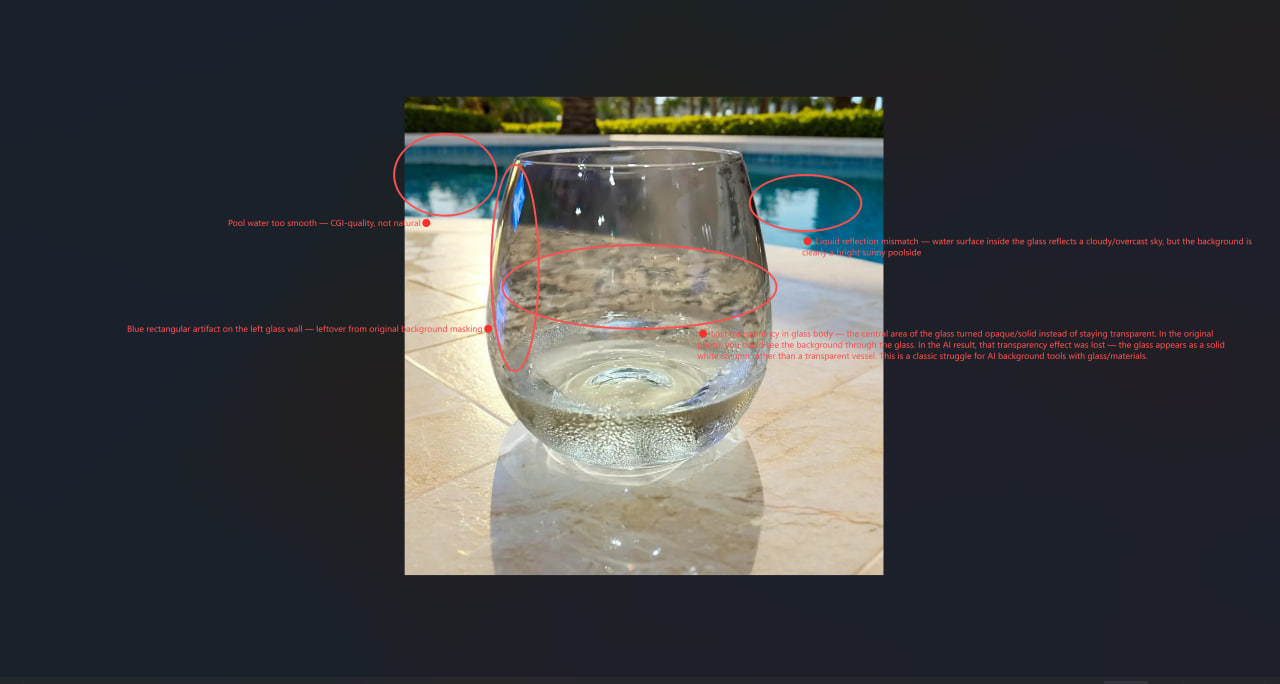
Same sparkling water glass. Switched the background to “Sunny Poolside.” Figured this would be a walk in the park after the restaurant test worked so well.
**It was not a walk in the park. It was a faceplant.**
I found 4 deal-breaking issues that any experienced seller would spot in 2 seconds:
**1. Reflection mismatch.** The background is bright sunny poolside. But the water reflection inside the glass? Looks like an overcast day. The light sources don’t agree with each other. This is the kind of thing that screams “AI generated” to anyone who’s ever looked at a real photo.
**2. Blue color bleed on the glass edge.** Left side of the glass has a patch of blue residue from the original background that Phot.ai didn’t fully remove. It’s not huge — maybe 10 pixels wide — but once you see it, you can’t unsee it. On a white background you’d never notice. On a complex scene? It’s a dead giveaway.
**3. The pool water looks like CGI.** The “pool” in the background looks like a video game from 2015. Fake turquoise, no depth, no light caustics. Real water has complexity — reflections, refraction, movement. This looked like someone dropped a solid blue texture behind the image. It ruins the believability of the whole scene.
**4. The glass lost its transparency.** This is the biggest sin. In the original photo, the glass is clear — you can see through it. In the Phot.ai output, the glass turned semi-opaque, like frosted plastic. The whole point of a clear glass is that it’s TRANSPARENT. Phot.ai somehow forgot that.
**Rating: 2/5.** Would not use for transparent or reflective products in complex lighting scenarios.
Pricing & Credits — The Reality Check
Test 4: The Free Plan Is a Teaser, Not a Tool
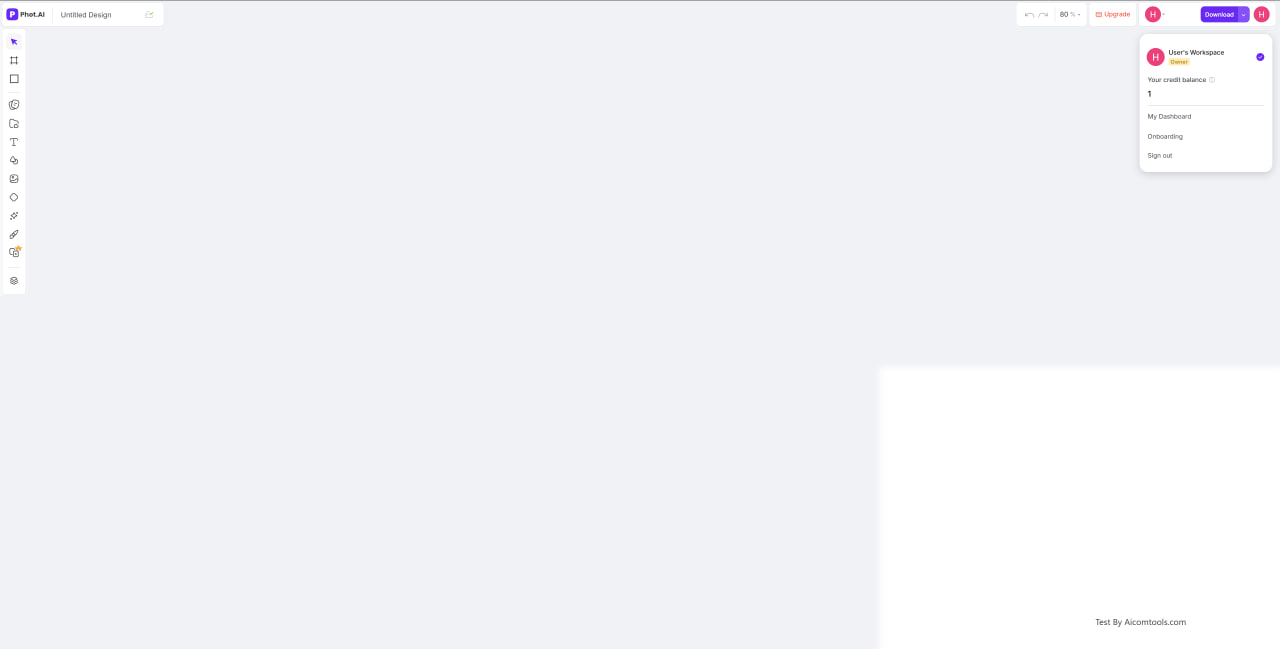
I used the FREE Workspace. Here’s what you need to know:
That glass result is unusable for Amazon listing photos. But there’s a fix — I wrote a complete glass background removal tutorial that walks you through the Manual Refine workaround step by step. It turns that 2/5 disaster into a usable product shot. And once your images are ready, you will need equally strong copy — I tested Writesonic’s AI for product descriptions to see if it actually converts.
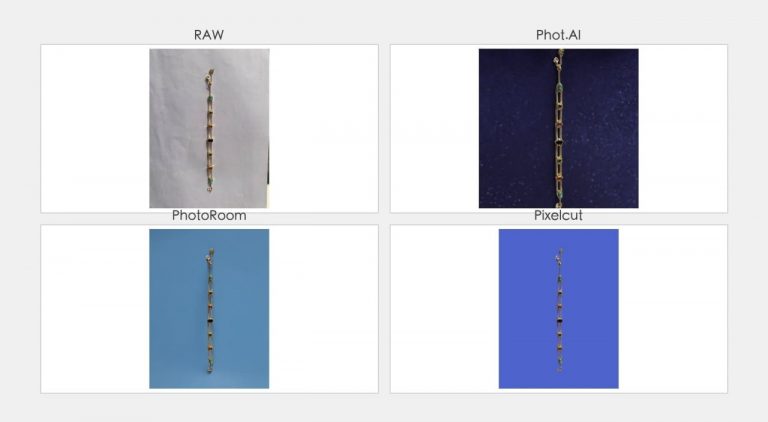
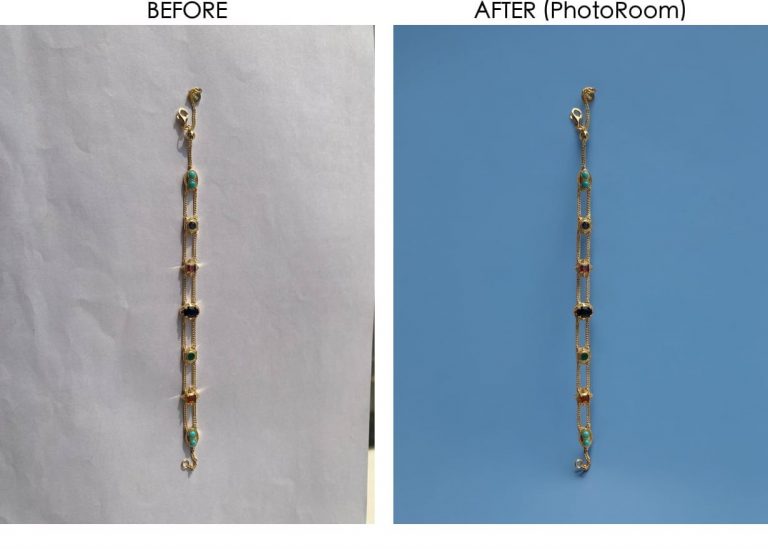
If you’re shooting jewelry specifically, check out my step-by-step tutorial on how to recover that gold shine with Phot.ai’s manual controls.
- 8 credits per generation — That’s steep for “free”
- I’m down to 1 credit after 4 tests — 4 image sets and I’m done
- Every output has a watermark — Completely unusable for commercial use
- Free plan = test drive, nothing more
**The math is simple:** If you’re a serious ecommerce seller, the free plan will frustrate you within 30 minutes. The watermarks alone make it useless for product listings, social media, or Amazon. You’ll need to upgrade.
The Verdict — Who Should Use Phot.ai (and Who Shouldn’t)
Try Phot.ai Free → Get 20 Credits & Test Your First Product Image
**Buy it if:**
- You sell solid, opaque products (shoes, bottles, boxes, clothes)
- You need quick A+ product scenes for Amazon listings
- You’re already paying $20+/photo for basic background removal
- You can stomach the learning curve on complex scenes
**Skip it if:**
- Your catalog has lots of transparent or reflective items (glass, mirrors, jewelry)
- You need consistent lighting across a large product batch
- You’re on a shoestring budget and hoping the free plan will work — it won’t
**Bottom line:** Phot.ai is a legit tool for basic product photography automation. The shadow quality and edge detection are best-in-class for a one-click solution. But it’s not magic. The “sunny poolside” disaster proves that complex lighting scenarios will trip it up. Know its limits, work within them, and you’ll get your money’s worth.
FAQ
**Q: Can I use Phot.ai for Amazon product images?**
A: Yes, with the paid plan (free version has watermarks). It works best for solid products. Don’t use it for transparent items in complex backgrounds.
**Q: How many credits does Phot.ai cost per image?**
A: 8 credits per generation on the free plan. Paid plan pricing scales differently.
**Q: Does Phot.ai remove watermarks?**
A: Only on paid plans. Free version outputs are watermarked.
**Q: Is Phot.ai better than Photoshop for background removal?**
A: For basic scenes? Yes — it’s faster and requires no skills. For complex scenes (transparent objects, tricky reflections)? No — an experienced Photoshop editor will do better work.
📖 Want the step-by-step walkthrough? I put together a detailed tutorial on removing backgrounds from glass products using Phot.ai — including exactly how to fix the transparency issues I found in Test 3.
— wp:separator –>
*Tested June 2026. Results based on my own hands-on testing with real products — not a sponsored review, not an affiliate fluff piece. You deserve the actual truth before you spend your money.*
I put this tool through the wringer — now it’s your turn.
* Some links on this page are affiliate links. I earn a commission at no extra cost.
📸 Product Photography Series
- Phot.ai Full Review (Hub) ← You are here
- Glass Background Removal Tutorial
- 7 Best AI Tools for Amazon Sellers
- PhotoRoom Review — The Mobile Alternative
- Pixelcut Review — Best for Batch Editing
- Jewelry Background Removal Tutorial
🚀 Ready to upgrade your product photography?
Try Phot.ai — the tool that aced our tests. Get 50 free credits to start.
Try Phot.ai Free →Affiliate Disclosure: Some links on this page are affiliate links. If you click and make a purchase, we may earn a commission — at no extra cost to you. See our full Affiliate Disclosure for details.

Former prop desk trader. I evaluate AI tools the way I used to evaluate trading systems — by running real tests and measuring actual ROI before recommending anything.
8 Comments