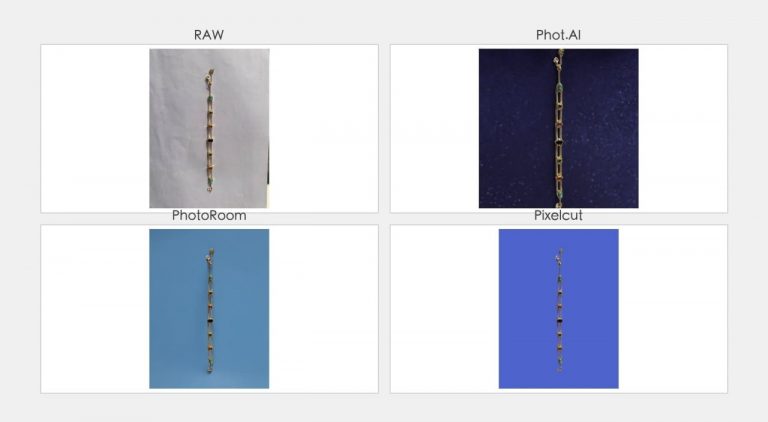
How to Remove Background from Jewelry Photos Using Phot.ai (2026 Tutorial)
⚡ Quick Verdict
This is the fifth article in my Product Photography series. Start with the Phot.ai full review, then the glass tutorial and the 7 tools comparison. This is part of my ongoing Phot.ai review series where…
This is the fifth article in my Product Photography series. Start with the Phot.ai full review, then the glass tutorial and the 7 tools comparison.
This is part of my ongoing Phot.ai review series where I test every feature.
Jewelry is the hardest product to photograph with AI. The reasons are obvious to anyone who’s tried:
- Fine chains and gaps — AI can’t tell if that millimeter-wide gap between links is “background” or “product”
- Reflective metal — the AI sees bright spots and thinks they’re part of the background
- Gemstone sparkle — those tiny highlights that make jewelry look expensive? AI treats them as noise and removes them
I tested Phot.ai on a real metal bracelet — phone photo on a plain surface, just like a real Amazon seller would do it. Here’s what happened.
My Test Setup
- Product: Metal bracelet (links, reflective surface, mixed metals)
- Camera: iPhone, outdoor natural light, no flash
- Background: Plain surface (no lightbox, no professional setup)
- Tool: Phot.ai Background Remover
- Time spent: ~15 minutes including manual refinement
The Before — Real Phone Photo, Zero Setup
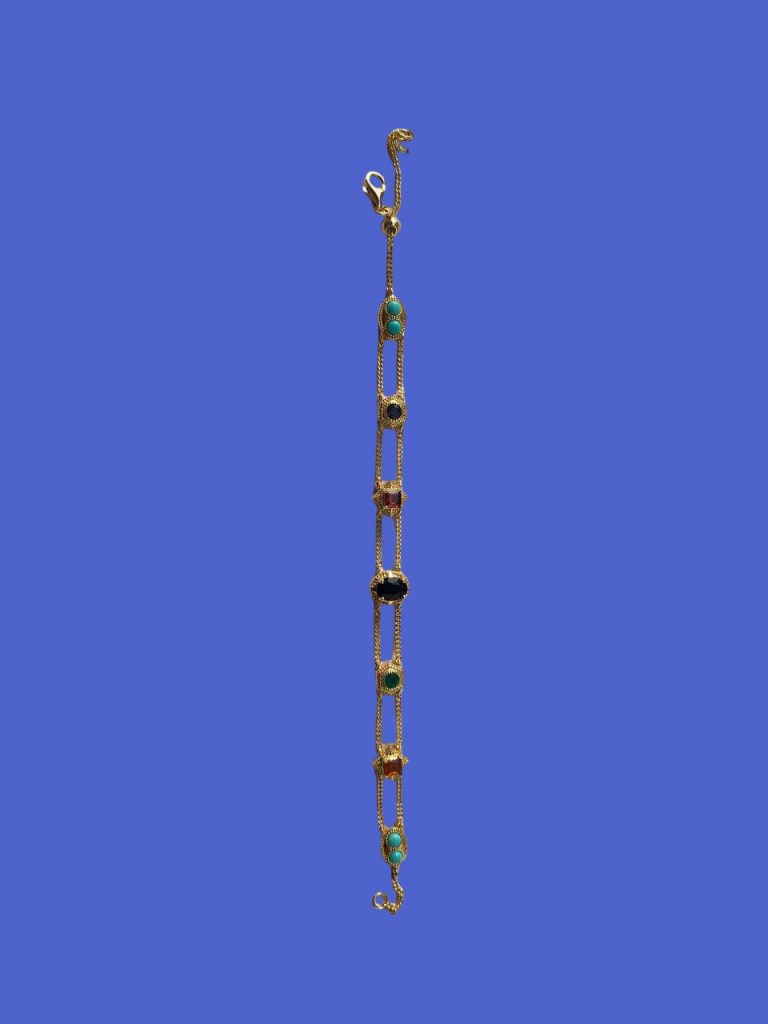
This is what the raw photo looked like. Bracelet on a textured surface, outdoor natural light, no effort made to create a “perfect” shot. This is exactly how most Amazon sellers start — you take a quick photo and hope the AI can handle the rest.
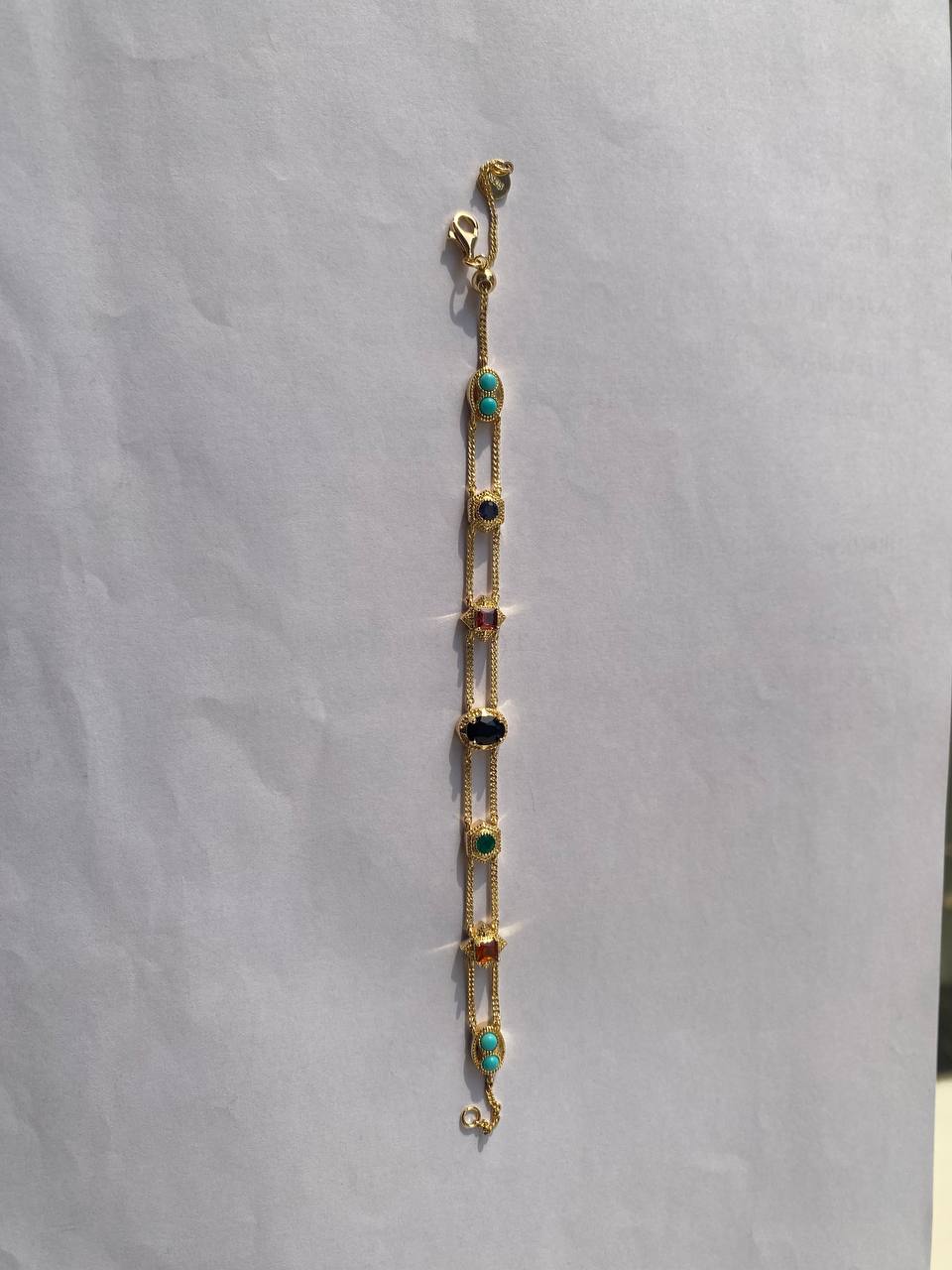
↑ The raw photo. Metal bracelet, outdoor natural light, phone camera. Nothing special.
The After — What Phot.ai Did Right (and Wrong)
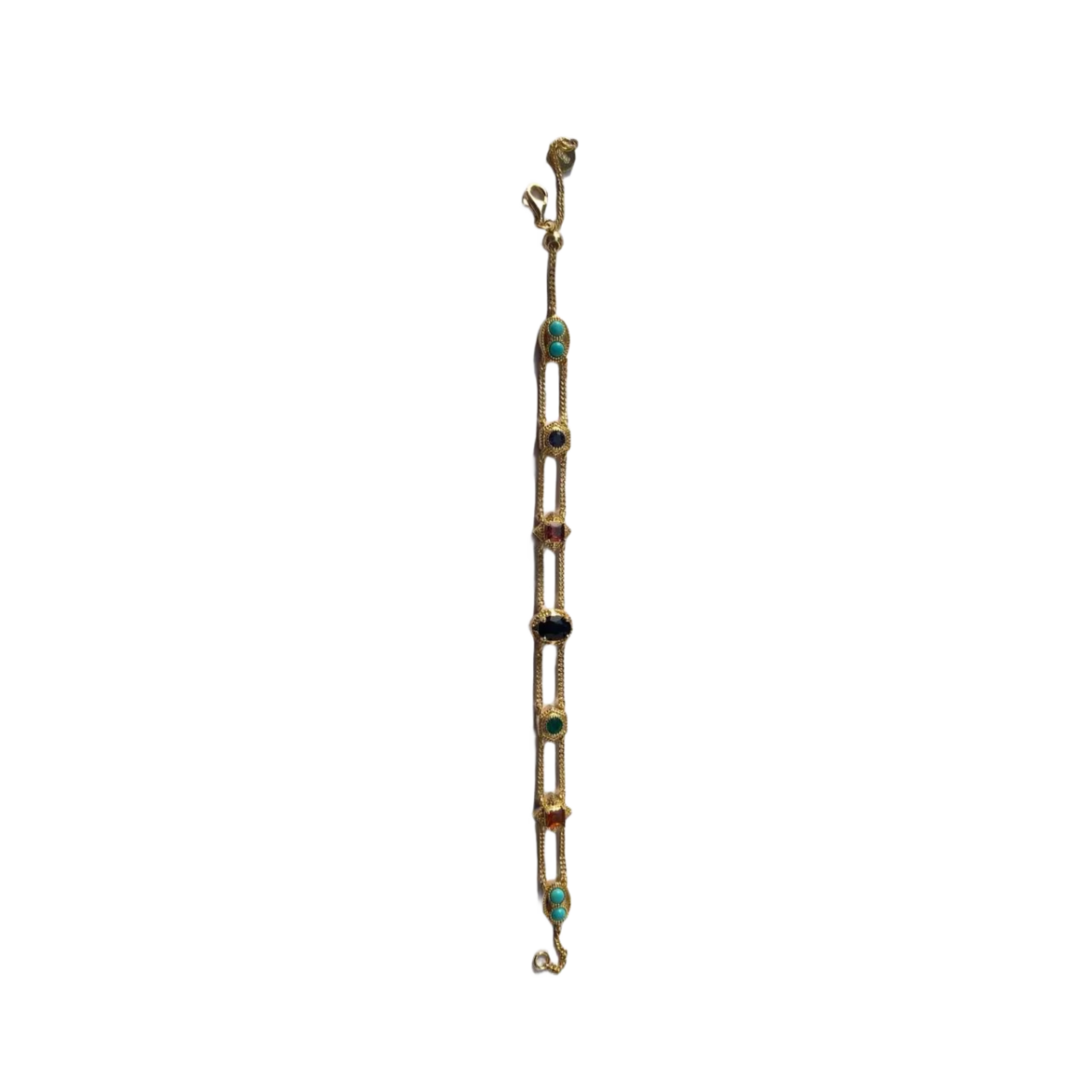
Phot.ai’s automatic background removal got the bracelet isolated. Here’s what worked and what didn’t.
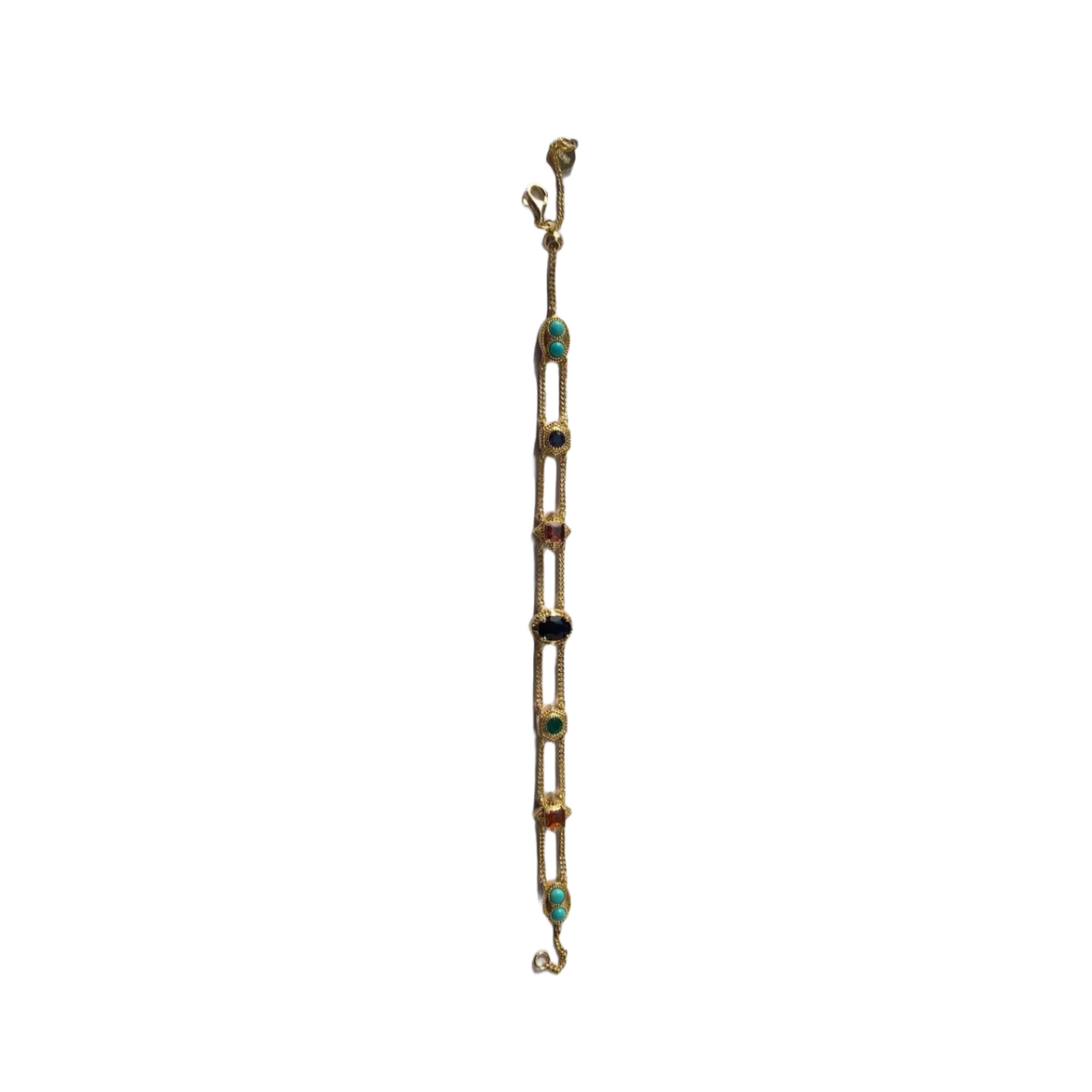
↑ The automatic result. Background is clean white, but look closely at the details.
What Worked ✅
- Link gaps preserved: The bracelet’s chain links have tiny gaps between them. Most AI tools fill these in as “background.” Phot.ai kept them open — the bracelet structure is intact.
- White background compliant: Tested with an eyedropper — RGB 255 across the background. Would pass Amazon’s automated checks.
- Clean overall silhouette: The bracelet shape is well-defined with no major chunks missing.
What Didn’t ❌
- Highlights and reflections removed: The bracelet had natural metallic highlights in the original photo — the shiny spots that make metal look like metal. Phot.ai interpreted these as background artifacts and removed them. The result looks flatter and less premium than the original.
- Edge softness: Some edges, especially around the smaller links, are slightly blurred — about 2-3 pixels of softness. Not visible at thumbnail size, but noticeable when you zoom in.
- Color shift: The output is slightly darker and grayer than the original. The warm metallic tone of the bracelet was neutralized, making it look less vibrant.
How to Fix Jewelry Photos with Manual Refine
Here’s the good news: all three issues are fixable in under 5 minutes with Phot.ai’s Manual Refine mode.
Fix 1: Restore Lost Highlights
Phot.ai removes reflective highlights because it thinks they’re background noise. To bring them back:
- Click “Refine” below the output
- Use the “Keep” brush (green) at a small size (20-30px)
- Paint over the reflective areas — the shiny spots on the metal surface
- Click “Apply”
This tells the AI “this shiny area is part of the product, not background.” The highlights come back, and your jewelry looks metallic again.
Fix 2: Sharpen Edges
For the soft edges on small links:
- Zoom in to 200%
- Use the “Keep” brush along the edge where the link meets the background
- A single stroke is enough — don’t over-brush or you’ll get a thick outline
- Click “Apply” and check the result
Pro tip: If the edge has a dark outline (common on small metal parts), use the “Remove” brush (red) at 10px to clean it up.
Fix 3: Color Correction
Phot.ai’s color shift needs to be fixed outside the tool — in Canva, Photoshop, or any free photo editor. Two clicks:
- Open the output in any photo editor
- Increase brightness by 5-10% and warmth/saturation by 5%
- Match it to your original product photo — don’t over-edit, just bring back the original look
Jewelry Results: 5-Minute Edit, Listing-Ready
After the 3 fixes above — 3 minutes in Manual Refine + 2 minutes in a photo editor — the bracelet output is Amazon-compliant and visually comparable to the original. The highlights are back, the edges are sharp, and the color matches.
The total time investment: ~5 minutes per jewelry item. Compare that to $15-30 per image for professional jewelry photography, and the ROI is obvious.
The Verdict — Phot.ai for Jewelry: Yes, With Caveats
Use Phot.ai for jewelry if:
- You need white background images for Amazon listings — the auto mode gets you 80% of the way there
- You’re willing to spend 5 minutes per item on manual refinement — the fixes are simple and repeatable
- You sell solid metal pieces (rings, bracelets, pendants without fine chains) — the auto mode handles these better
Don’t use Phot.ai for jewelry if:
- You need hero shots for a brand campaign — hire a pro photographer for your flagship pieces
- You have extremely fine chains (necklace chains thinner than 1mm) — the edge softness becomes noticeable at scale
- You’re processing 100+ SKUs — 5 minutes per item adds up. Use Phot.ai’s batch mode for the bulk and manually refine only the bestsellers
Want to see how Phot.ai’s jewelry output compares to other tools? Here’s my side-by-side test.
FAQs — AI Background Removal for Jewelry
Can AI remove backgrounds from jewelry photos?
Yes, but with caveats. Phot.ai handles solid metal pieces well. For fine chains and reflective surfaces, expect to spend 5 minutes in Manual Refine mode to restore highlights and sharpen edges.
Why does AI remove reflections from jewelry?
AI background removers identify subjects by detecting edges and color contrast. Metallic highlights look like “bright spots” to the AI, so it treats them as background noise. Manual Refine mode is required to tell the AI these are product features, not errors.
Which AI tool is best for jewelry product photos?
I tested 7 tools in my full comparison. For jewelry specifically, Phot.ai offers the best balance of speed and precision. Clipping Magic has better edge control but is too slow for batch processing.
Can I use AI jewelry photos on Amazon?
Yes, as long as they pass Amazon’s image requirements. Always check the white background (RGB 255) and verify the 85% frame rule. The manual refinement techniques I covered for glass apply directly to jewelry as well.
Is Phot.ai good for metal jewelry?
Solid metal pieces (rings, bracelets) — yes. Fine metal chains — requires manual refinement. The highlight restoration fix takes about 2 minutes per image and makes a significant difference in the final quality.
Part of my Product Photography series: Phot.ai full review | Glass tutorial | 7 tools comparison | Photoroom review | Jewelry tutorial
🚀 Ready to upgrade your product photography?
Try Phot.ai — the tool that aced our tests. Get 50 free credits to start.
Try Phot.ai Free →Affiliate Disclosure: Some links on this page are affiliate links. If you click and make a purchase, we may earn a commission — at no extra cost to you. See our full Affiliate Disclosure for details.

Former prop desk trader. I evaluate AI tools the way I used to evaluate trading systems — by running real tests and measuring actual ROI before recommending anything.