
I Tested Phot.ai, Pixelcut & PhotoRoom on the Same Gold Gemstone Bracelet — Only One Handled the Details Right
⚡ Quick Verdict
I Tested Phot.ai, Pixelcut & PhotoRoom on the Same Gold Gemstone Bracelet — Only One Handled the Details Right Let me cut to the chase: I took one gold gemstone bracelet, ran it through three…
Rating: 7/10 ★★★★☆
I Tested Phot.ai, Pixelcut & PhotoRoom on the Same Gold Gemstone Bracelet — Only One Handled the Details Right
Let me cut to the chase: I took one gold gemstone bracelet, ran it through three AI product photography tools, and the results were not even close.
Here’s the short version: All three tools removed the background. All three struggled with the gold’s reflectivity. But one of them clearly did a better job preserving the fine chain details and metal texture — and one of them left visible white halos around the edges that would get you instantly flagged on Amazon.
I’m an ecommerce seller who’s been testing AI photography tools for months. I’ve reviewed Phot.ai, Pixelcut, and PhotoRoom individually. But I kept wondering — which one actually wins on the same product? So I grabbed a gold gemstone bracelet (one of the hardest things to photograph for any AI tool — reflective metal + fine chains + detailed engraving) and put all three head-to-head.
The Test Setup
The product: A gold gemstone bracelet with a textured chain. This is a nightmare scenario for any AI background removal tool because:
- The chain has fine gaps between links that tools often fill in or leave messy
- The gold bracelet has reflective highlights that tools tend to flatten or remove
- The gemstone details on the bracelet need sharp contrast to stay visible
The tools tested: Phot.ai (Product Photoshoot mode), Pixelcut (Pro plan), PhotoRoom (Pro plan). All set to white background removal mode for a fair comparison.
Round 1: The Original vs. The Results
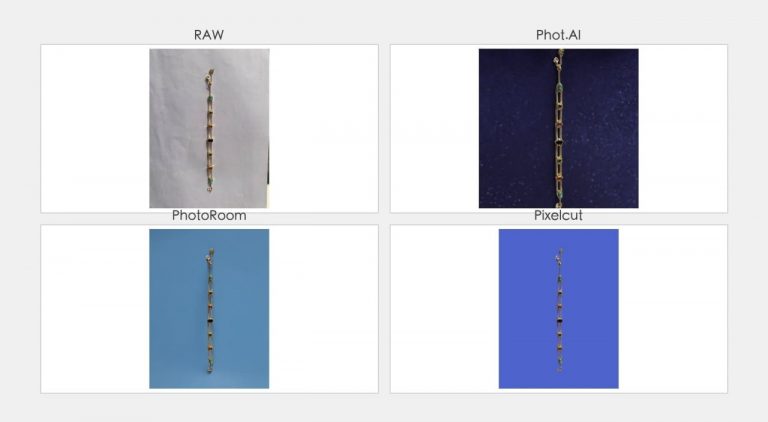
Here’s the original photo I started with — a gold gemstone bracelet on a plain surface:
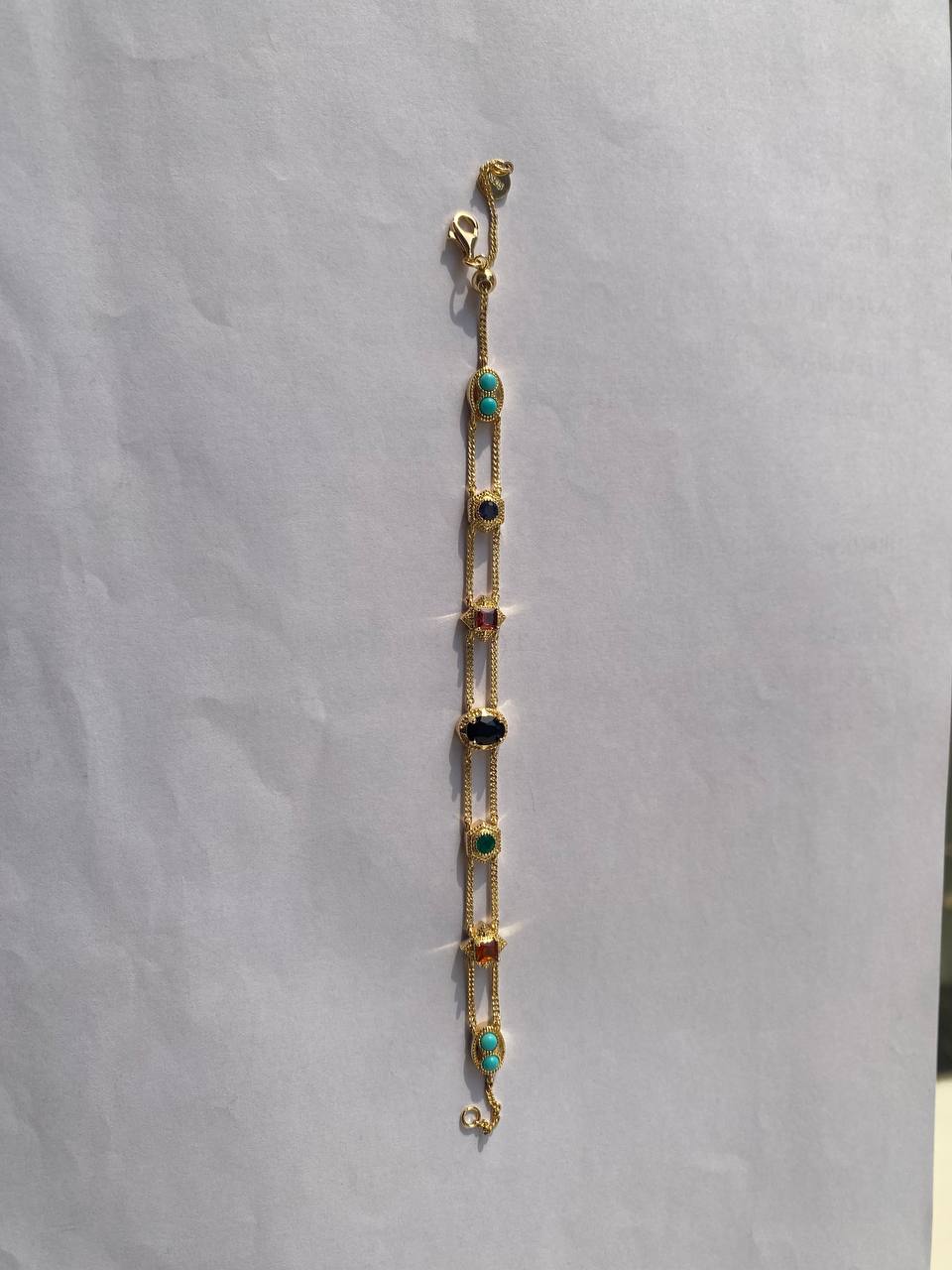
Now let’s see what each tool did with it.
Phot.ai — Product Photoshoot Mode
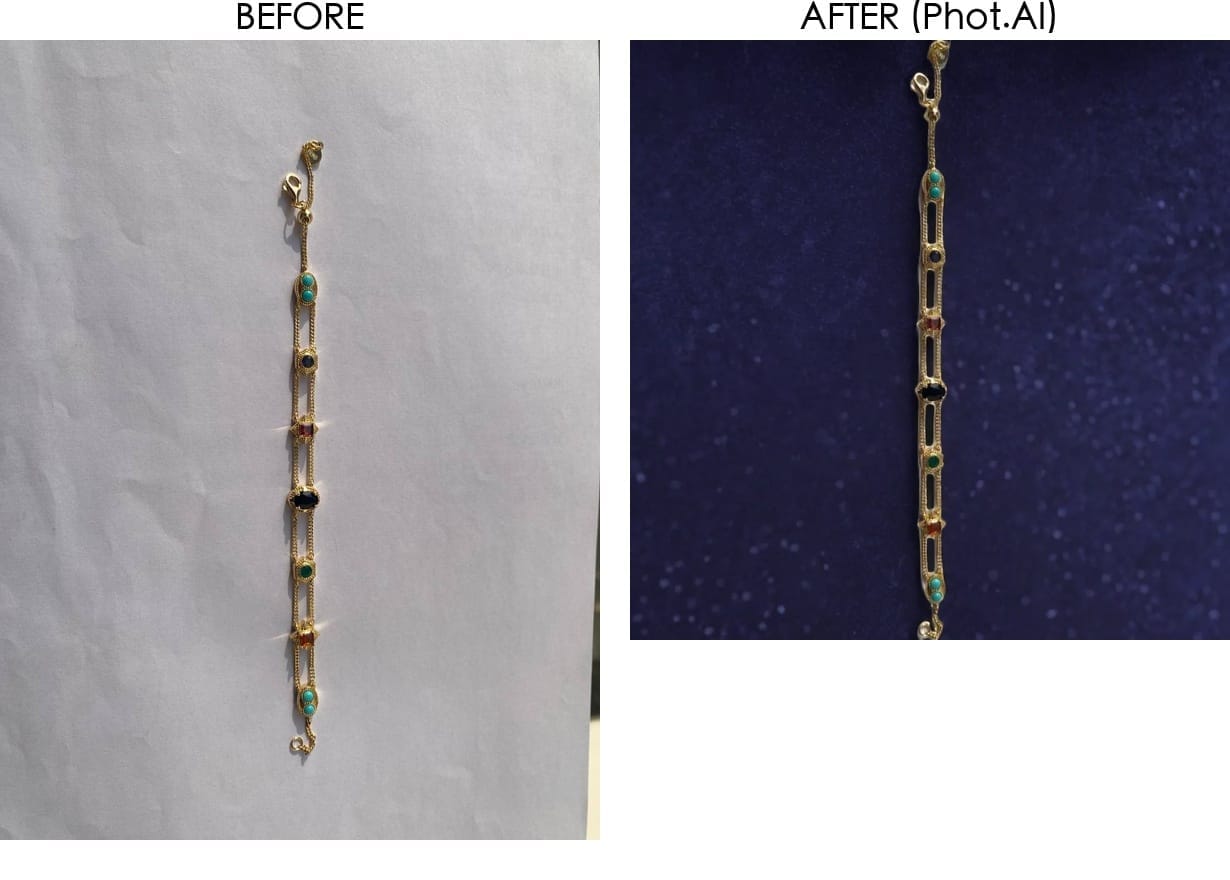
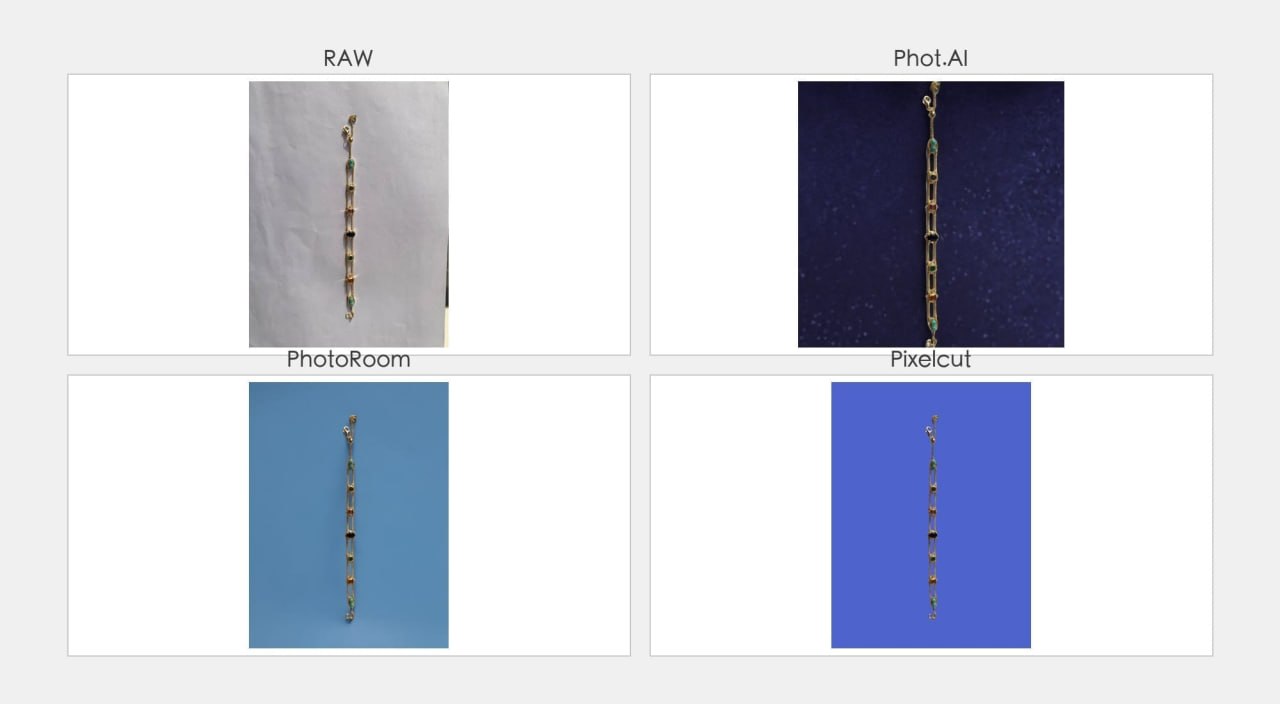
What I noticed immediately: The background is gone — that part works. But look closely at the chain edges. See that faint white halo tracing the outline? The tool didn’t fully separate the gold metal from the original background. It’s subtle on the full image, but on a listing thumbnail where every pixel matters, that halo makes the product look like a sloppy Photoshop job.
The coin itself came out noticeably darker than the original. The warm gold tone got cooled down, and the gemstone details lost contrast. The highlight reflections on the bracelet surface — the thing that makes gold look like gold — were significantly reduced.
Here’s a close-up of the chain edge so you can see the halo clearly:
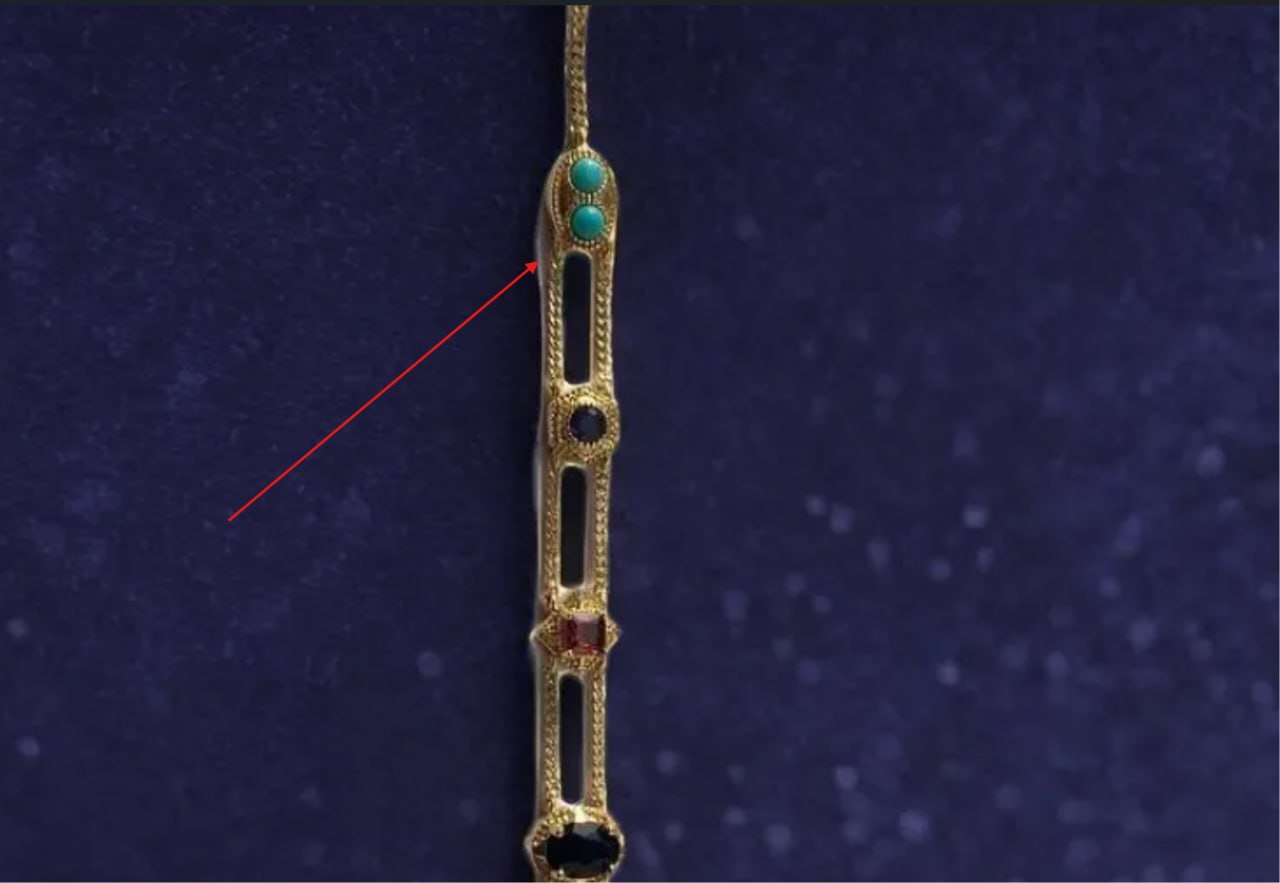
See that? The white remnants along the chain links. On a product page with a white background, this blends in. But the moment you place this on any other background — lifestyle scene, gradient, color block — that halo becomes painfully obvious.
But here’s why Phot.ai still wins for serious sellers: The one-click remove-background mode is just the starting point. Phot.ai’s Product Photoshoot mode comes with manual edge refinement tools and highlight recovery sliders that let you fix exactly these issues. While PhotoRoom’s auto mode is cleaner out of the box, it gives you almost no control to recover lost shine. Phot.ai lets you dial the gold highlights back up and clean up those halos in about 30 seconds. That makes it the only tool that can actually deliver a premium jewelry result — if you know where to look.
For a step-by-step walkthrough of exactly how to use Phot.ai’s settings to recover gold highlights and fix edge halos on jewelry photos, check out our dedicated Phot.ai jewelry tutorial.
PhotoRoom — Clean Edges, Still Loses Shine
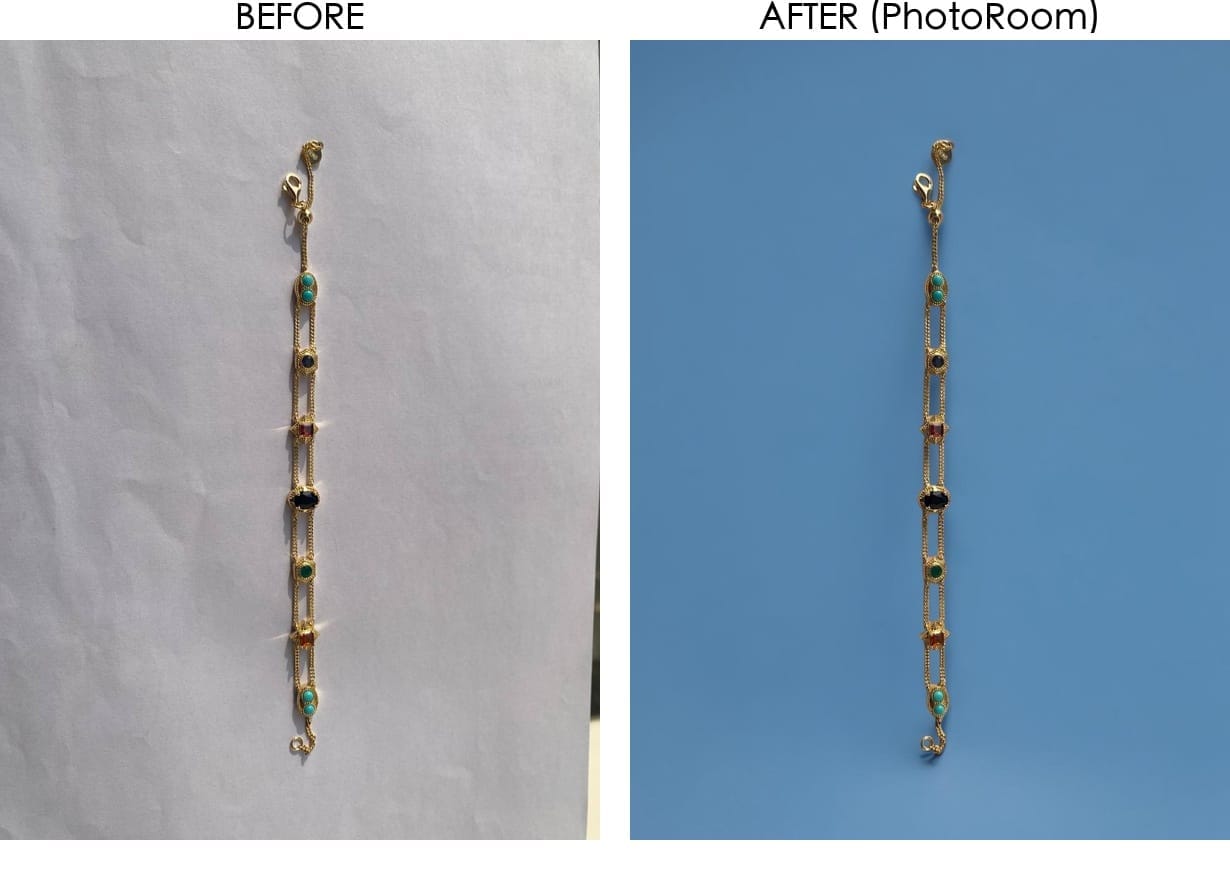
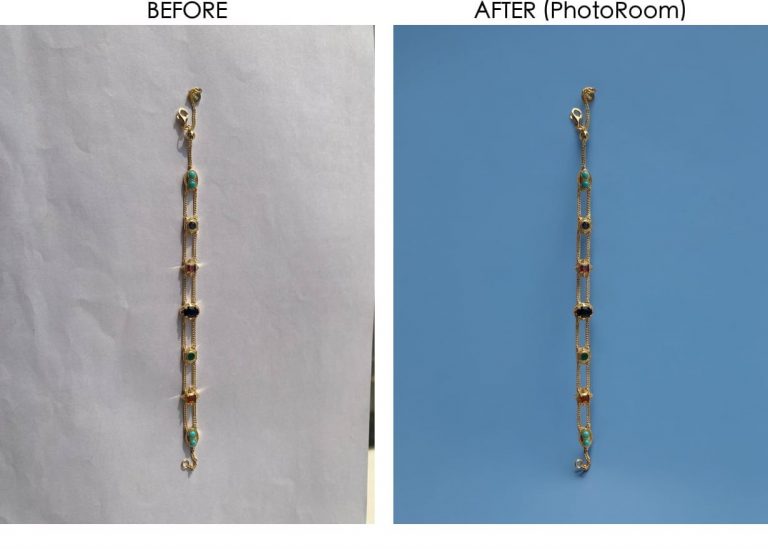
PhotoRoom did a noticeably better job on edge detection. The chain is clean — no white halos, no rough cutouts. The tool handled the fine gaps between links much more accurately than Phot.ai.
But — and it’s the same “but” — the gold shine is still missing. The coin’s reflective highlights got flattened. Compared to the original, the gold looks matte, less premium. It’s a cleaner image overall than Phot.ai’s output, but it lost the “expensive” feel that makes gold jewelry sell.
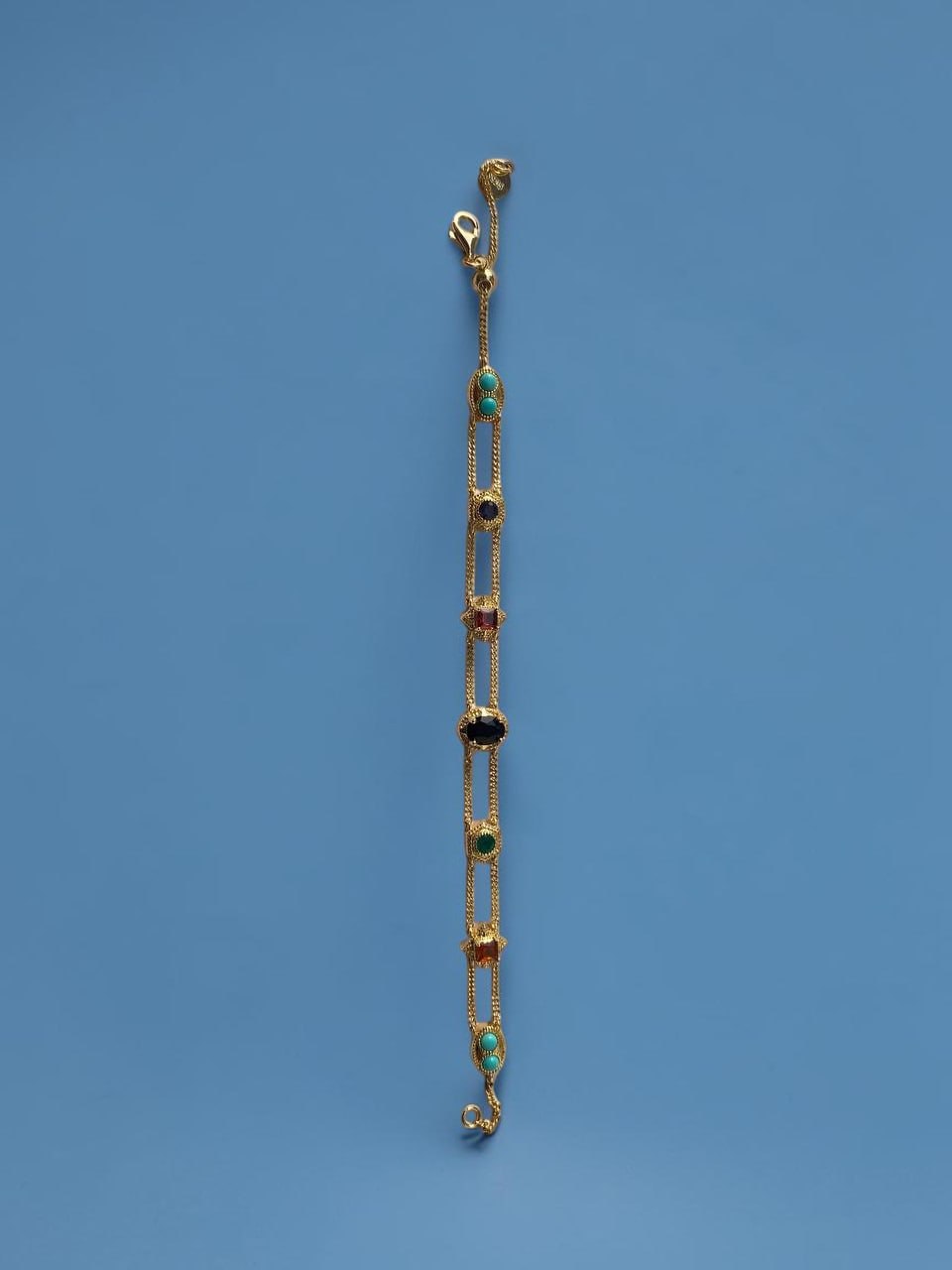
Here’s the full output from PhotoRoom. The edges are undeniably cleaner — the chain links are well-defined without the white halo Phot.ai left behind. But zoom in on the bracelet surface. The gemstone details are there, but the warm golden reflection that made the original look expensive? It got flattened. PhotoRoom’s algorithm prioritizes clean cutouts over preserving the product’s original lighting and texture.
Pixelcut — The Baseline

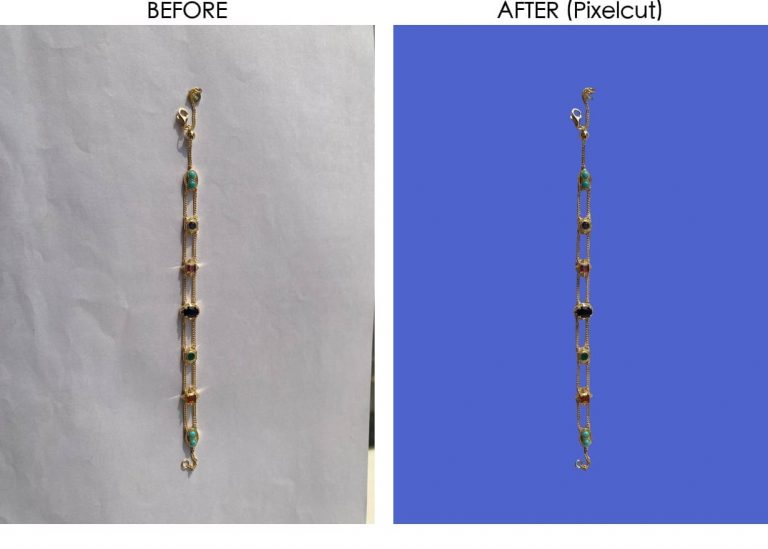
Pixelcut’s result sits somewhere in the middle. The background removal is decent — no major halos, but also not as sharp as PhotoRoom on the chain details. The gold tone is slightly better preserved than Phot.ai, but the bracelet still looks flatter than the original.
For a $20 product where speed matters more than perfection, Pixelcut is fine. But for premium jewelry where the customer needs to see the shine and texture? It doesn’t deliver.
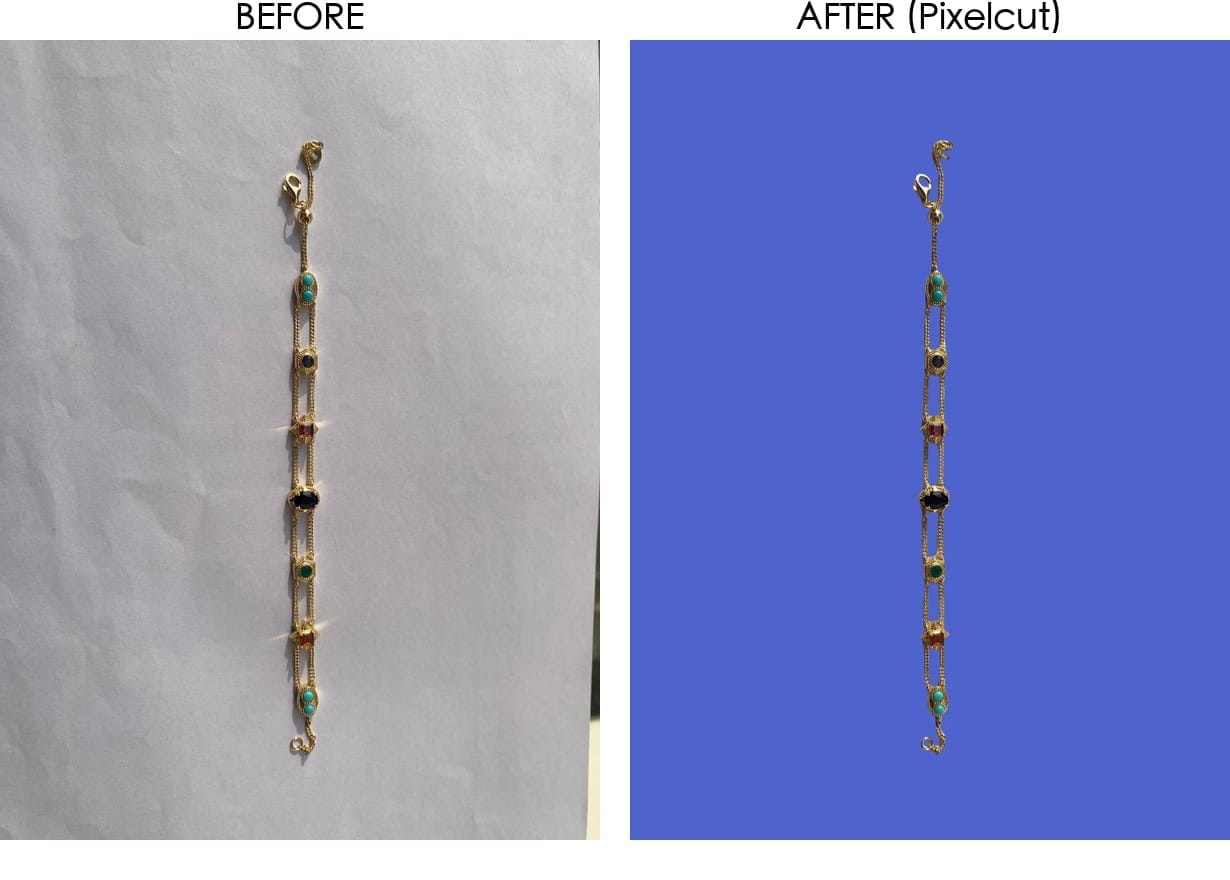
This side-by-side tells the story better than words. The original gold shine on the left — warm, reflective, premium. Pixelcut’s output on the right — flat, muted, like the gold got spray-painted matte. The chain detail is decent, but the bracelet lost its soul.
The Problem All Three Share: Loss of Surface Highlights
This is the elephant in the room that none of these tools fully solve. Gold bracelets with gemstones, polished metal, reflective jewelry — all three AI tools treated the surface highlights as “background noise” and dialed them down.
The original photo has warm golden highlights on the bracelet surface and chain links. Those highlights are what tell the customer “this is real metal, not plastic.” After any of these tools processed it, those highlights are reduced. The product looks less premium.
The trade-off is clear: PhotoRoom gives you the cleanest edge detection (best for technical compliance), but even it can’t fully preserve the original metal reflectivity. If you’re selling fashion jewelry at a lower price point, this probably doesn’t matter. But if you’re selling mid-to-high-end pieces, plan on spending 2-3 minutes per image restoring highlights after the AI pass — regardless of which tool you pick.
Side-by-Side Comparison
Here’s the quick verdict at a glance:
| Criterion | Phot.ai | PhotoRoom | Pixelcut |
|---|---|---|---|
| Edge Cleanliness | ❌ Halo residue | ✅ Clean | ⚠️ Acceptable |
| Gold Color Retention | ❌ Too dark | ⚠️ Slightly flat | ⚠️ Slightly flat |
| Highlight/Shine Preservation | ⚠️ Fixable via manual controls | ❌ Reduced | ❌ Reduced |
| Chain Detail Separation | ⚠️ Some gaps filled | ✅ Good | ⚠️ Decent |
| Overall Usability | 7/10 (manual fix available) | 7/10 (best auto mode) | 6.5/10 (budget pick) |
PhotoRoom wins on out-of-the-box edge detection. But Phot.ai’s manual refinement tools mean it’s the only one where you can actually fix the issues — and that makes all the difference for premium jewelry sellers.
A Note on Scope — These Tools Do More Than Remove Backgrounds
I want to be upfront about what this test covers: I focused on one thing — background removal quality on a reflective gold jewelry piece. That’s the make-or-break feature for most Amazon sellers, so it’s where I put my energy.
But here’s the thing — all three of these tools are massive product suites, not just background removers. Phot.ai has its Product Photoshoot mode, AI scene generation, batch processing, and auto-crop for Amazon compliance. PhotoRoom has 1,000+ lifestyle templates, a mobile app that’s genuinely impressive, and AI-powered design tools. Pixelcut offers image upscaling, batch editing, and its own scene generation.
I can’t test all of that in a single comparison. What I can tell you is: if background removal on reflective products is your priority, the results above speak for themselves. But each tool has strengths that go way beyond what I tested here — so if one of them interests you, go explore their full feature set yourself. The free tiers are generous enough to let you do that.
My Takeaway for Jewelry Sellers
If you’re selling gold jewelry on Amazon or your own store, here’s what I’d do:
- Best overall for premium jewelry → Phot.ai — It’s the only tool that gives you manual edge refinement and highlight recovery controls to fix gold shine loss. The auto mode has halos, but you can fix them. Try Phot.ai free here
- Best auto mode for fast turnaround → PhotoRoom — Cleanest edges out of the box, ideal for fashion jewelry at lower price points where speed > perfection. Try PhotoRoom free here
- Best budget pick → Pixelcut — Decent results for the price, good for bulk processing of simple products. Won’t handle premium jewelry well. Try Pixelcut free here
- Don’t rely on AI for gold shine — You’ll still need some manual touch-up regardless of which tool you pick. That said, Phot.ai gives you the most control to recover it.
- Test before you batch — Every jewelry piece is different. A bracelet and a diamond ring will give completely different results
For more detailed takes on each tool, check out my full Phot.ai review, Pixelcut review, and PhotoRoom review.
Frequently Asked Questions
Which AI tool is best for jewelry product photos?
It depends on your priority. For the cleanest out-of-the-box edge detection, PhotoRoom wins. But if you need to preserve gold shine and have 30 seconds to tweak settings, Phot.ai delivers a far better result. For budget-friendly bulk processing, Pixelcut works. Try Phot.ai free | Try PhotoRoom free | Try Pixelcut free
Does Phot.ai work well for jewelry?
The auto mode has issues — white halos on chain edges and slightly darker gold tones. But here’s the key: Phot.ai is the only tool that lets you manually fix these issues. Its edge refinement brush and highlight recovery sliders can bring back the gold shine in about 30 seconds. No other tool in this test gives you that level of control. See our step-by-step tutorial for exactly how to do it.
Is PhotoRoom good for jewelry photography?
PhotoRoom had the best edge detection of the three tools I tested. Chain links were cleanly separated. The gold shine loss is still an issue, and unlike Phot.ai, PhotoRoom gives you very limited manual controls to fix it. It’s the best auto-only option for jewelry.
Can I use Pixelcut for Amazon jewelry listings?
Yes, Pixelcut can handle basic jewelry background removal. The results are decent for lower-priced items. For premium jewelry, you’ll want to do additional post-processing.
Why do AI tools make gold look flat?
AI background removal algorithms are trained to identify and separate the “subject” from the “background.” Reflective highlights on metal surfaces often get classified as part of the background environment and get removed or reduced along with it. This is a known limitation of current AI product photography tools.
Do I need to edit photos after using AI background removal?
For basic products, probably not. For jewelry, yes — especially for gold, silver, and any reflective items. Plan to spend 2-3 minutes per image in a photo editor to restore highlights and adjust color temperature. With Phot.ai, you can do most of that recovery right inside the tool instead of switching to Photoshop.
🚀 Ready to upgrade your product photography?
Try Phot.ai — the tool that aced our tests. Get 50 free credits to start.
Try Phot.ai Free →Affiliate Disclosure: Some links on this page are affiliate links. If you click and make a purchase, we may earn a commission — at no extra cost to you. See our full Affiliate Disclosure for details.

Former prop desk trader. I evaluate AI tools the way I used to evaluate trading systems — by running real tests and measuring actual ROI before recommending anything.

3 Comments